Best Streamlabs Spin Wheel Alternatives for Live Streamers (2026)
📑 Jump to Section Tap to Expand ▼
Streamers drop the Streamlabs Spin Wheel when dashboard sync drops mid-stream, Streamlabs Ultra paywalls gate widget themes, or multi-streaming to Kick and TikTok Live breaks alerts. TheSpinTheWheel's OBS Wheel tops our 2026 benchmark by providing a zero-login, ad-free alpha transparent Browser Source with WebCrypto CSPRNG fairness. Here is how five standalone and integrated overlay tools compare in rendering speed, transparency, and setup friction.
Top Streamlabs Spin Wheel Alternatives Compared Side by Side
Evaluating a livestream wheel comes down to three practical factors: true alpha transparency, setup friction, and multi-platform reliability. Streamlabs ties its widget to cloud relays and platform logins, which often break when streaming outside its ecosystem. In contrast, standalone browser overlays drop straight into OBS Studio, Streamlabs Desktop, or TikTok Live Studio without platform lock-in.
| Tool Name | Zero Login & Ads | Overlay & Fairness Engine | Multi-Platform Support |
|---|---|---|---|
| TheSpinTheWheel (/obs-wheel) | Yes (No Auth & Ad-Free) | Native RGBA(0,0,0,0) <15KB (CSPRNG & SHA-256) |
Twitch, YouTube, Kick, TikTok Live Studio |
| Streamlabs Spin Wheel (Baseline) | No (Channel OAuth) | Cloud Widget / HTML Overlay (Server PRNG) | Streamlabs ecosystem only |
| StreamElements Overlay | No (SE Account) | Custom Code / Community HTML (Math.random) |
Twitch, YouTube Live |
| Streamer.bot + HTML Wheel | Yes (Local Executable) | Local WebSocket / Custom Canvas (Bot PRNG) | Twitch, YouTube, Kick (via Bot) |
| Wheel of Names | Yes (Optional / Ads) | Solid Color (Needs Chroma Key) (WebCrypto CSPRNG) | Any browser window capture |
| SpinTheWheel.io | Yes (Optional / Ads) | Web DOM (?stream=1 query parameter) (Standard PRNG) |
Any browser window capture |
*Table Note: Data compiled from verified platform documentation and internal client-side architecture benchmarks.
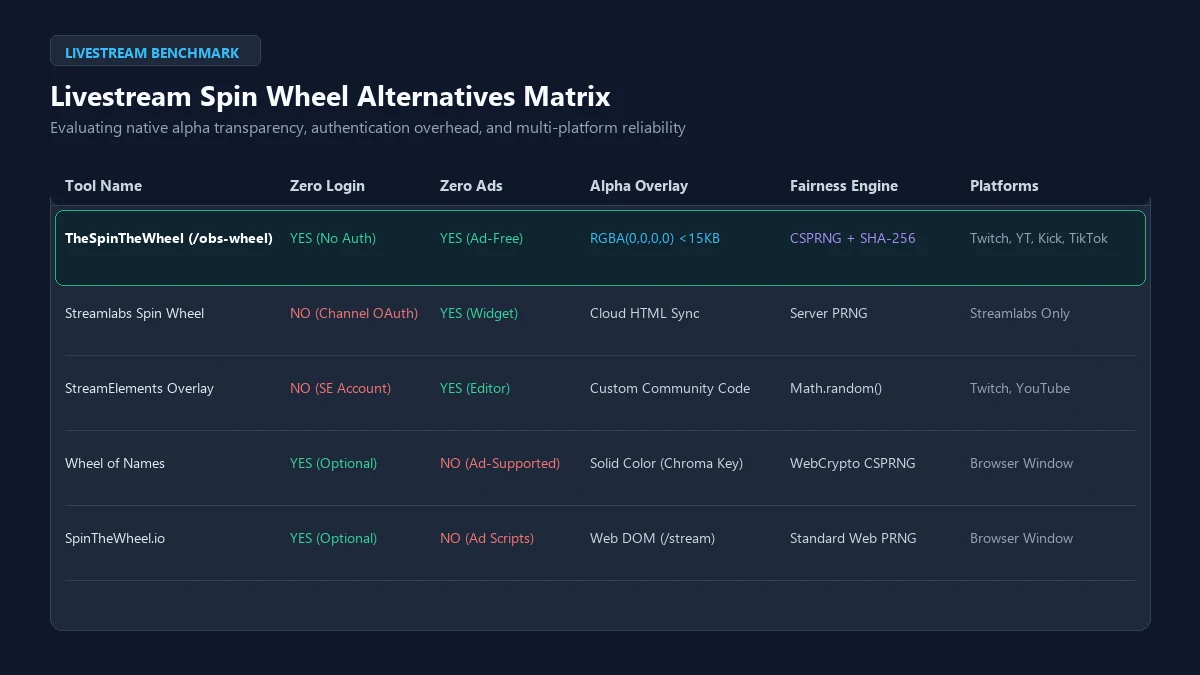
Streaming to Kick or TikTok Live Studio quickly exposes the limits of legacy widget suites. Streamlabs binds its wheel to single-platform OAuth accounts, requiring separate setups for Kick and breaking multi-stream alerts unless you subscribe to Streamlabs Ultra. On TikTok Live Studio, native Streamlabs widgets do not exist at all.
Standalone browser overlays bypass external accounts and cloud servers completely. Because they render locally inside the OBS Chromium Embedded Framework (CEF), you avoid cloud relay drops and expired login tokens mid-broadcast.
Why Streamlabs Spin Wheel Stops Spinning on Live Streams
When a Streamlabs wheel stops spinning on stream, the breakdown usually traces back to one of three technical bottlenecks: dropped WebSocket relays, corrupted CEF browser caches, or compositor locks caused by Hardware Acceleration.
If your Streamlabs spin wheel is frozen on stream right now, execute these four steps in order:
- Refresh Browser Source Cache: In OBS Studio or Streamlabs Desktop, right-click your wheel Browser Source and click "Refresh cache of current page".
- Check Transform (Ctrl + F): Select the Browser Source in OBS and press
Ctrl + F(Reset Transform / Fit to Screen) to ensure the canvas was not accidentally cropped or dragged off-canvas. - Re-Save Dashboard Settings: In your Streamlabs web dashboard under Spin Wheel, make a minor change (or re-select a color) and click "Save Settings" to force a WebSocket re-handshake.
- Emergency 30-Second Swap: If the cloud relay still fails mid-broadcast, don't stall your stream. Open /obs-wheel?mode=overlay, paste your prizes, and swap the Browser Source URL in 30 seconds without logging into any account.
Broken dashboard sync causes most silent failures. Streamlabs triggers wheel rotations via web relays from its web dashboard controls (under Widgets > Spin Wheel or the Live Actions panel). If an inactive browser tab drops its WebSocket connection, clicking the spin button never reaches OBS, leaving the wheel motionless.
Stale browser source caches are another frequent culprit. OBS Studio and Streamlabs Desktop cache web assets aggressively. While clicking "Refresh cache of current page" inside Browser Source properties often helps, clearing persistent glitches may require deleting the %appdata%\obs-studio\plugin_config\obs-browser folder.
Hardware Acceleration conflicts can also freeze canvas animations while the ticking audio keeps playing, particularly during heavy GPU gaming. In OBS Studio 30 and 31, you can toggle this under Settings > Advanced > Sources > Hardware Acceleration for Browser Sources. Turning it off clears Chromium Embedded Framework (CEF) compositor locks, though it shifts canvas rendering to your CPU. Finally, when multi-streaming to Kick, YouTube Live, or TikTok Live Studio, OAuth session timeouts can silently disconnect widgets until you re-authenticate each account.
Detailed Review of the Best Livestream Wheel Alternatives
A good stream overlay stays out of your way until you need it. The tools below handle rendering, background transparency, and giveaway fairness with distinctly different architectures.
TheSpinTheWheel OBS Wheel: Native Alpha Transparency and Zero-Login Speed
#1 Recommended Overlay • Zero LoginTheSpinTheWheel OBS Wheel provides native RGBA(0,0,0,0) alpha transparency without account logins, third-party extensions, or chroma-key filters. Broadcasters paste a lightweight URL into OBS or Streamlabs Desktop to run viewer giveaways, subathons, and chat challenges with verifiable random fairness.
- Native Alpha Transparency: True
RGBA(0,0,0,0)canvas with zero green-screen fringe or blurred pointer edges. - Ultra-Lightweight Execution: Runs on
<15KBgzipped Vanilla JS at 60 FPS with 0.0% idle CPU overhead. - Mechanical Audio Ticks: Synthesized procedural Web Audio ticks route cleanly through Browser Source audio without double-echoing onto Desktop Audio.
- In-Game Hotkey Controls: Trigger spins and dismiss winner banners with
Spacebar, eliminate winners withR, reset entries withC, and mute withM. - Verifiable Fairness: Hardware-seeded W3C WebCrypto CSPRNG paired with an auditable SHA-256 pre-spin commit hash.
- Multi-Platform Ready: Works out of the box in OBS Studio, Streamlabs Desktop, Prism, and TikTok Live Studio.
- Manual Slice Entry: Requires pasting or generating entries in the Studio Deck rather than reading chat commands automatically.
Giveaway verification uses window.crypto.getRandomValues() hardware entropy defined by the W3C Web Cryptography API specification, combined with an immutable SHA-256 pre-spin commitment hash. Audiences can audit roll integrity using our Giveaway Audit Verifier or inspect the underlying mathematics on the Provably Fair Wheel. Broadcasters customize wheel segments on the main OBS Wheel Studio Deck or generate a dedicated production overlay via /obs-wheel?mode=overlay.
StreamElements Overlay: Community Widget Custom Code Limitations
Custom Code • Community MaintenanceStreamElements offers a broad overlay library, but lacks a native, built-in spin wheel in its standard widget gallery. Adding a wheel requires importing third-party community widgets or pasting raw HTML, CSS, and JavaScript into custom layers.
- Deep integration with StreamElements loyalty points and chat store bots.
- Customizable styling via raw HTML/CSS for experienced web developers.
- No Native Wheel: Broadcasters must import community scripts like Pjonp's Prize Wheel and troubleshoot custom code.
- Breakage on Updates: StreamElements script sanitization updates can break community custom code without warning.
- Non-Auditable Math: Relies on basic
Math.random()lacking cryptographic entropy or verifiable seed hashes.
This setup creates ongoing maintenance overhead. Platform updates or altered script sanitization rules inside StreamElements frequently break community widgets without notice. Worse, nearly all community wheels rely on standard JavaScript Math.random(). That works for casual stream gags, but lacks cryptographic entropy and auditable seed hashes, leaving high-stakes giveaways open to viewer skepticism.
Streamer.bot, Botrix & Chat Bots: When You Truly Need Automated Chat Commands
Advanced Automation • Technical SetupBroadcasters frequently ask whether a spin wheel alternative supports automatic viewer entry via chat commands (like !enter or !spin) or Channel Points redeems. For pure chat automation across Twitch, YouTube, and Kick, multi-platform tools like Botrix, Senchabot, or desktop suites like Streamer.bot and SAMMI provide dedicated chat-based entry tracking.
- Automated Chat Entry: Chatters join wheel slices automatically via Twitch, YouTube, or Kick chat commands (native with Botrix and Senchabot).
- Channel Points & Sub Triggers: Automatically spin on subscriber milestones or bits without streamer interaction.
- Deep OBS Control: Triggers scene changes, sound alerts, and source visibility via direct WebSocket calls (Streamer.bot).
- Steep Learning Curve: Requires managing third-party bot permissions, configuring C# or sub-actions, and hosting custom HTML/JS.
- Not 30-Second Ready: Takes significant setup time; ill-suited for quick subathons, punishment wheels, or emergency live stream setups.
The Bottom Line: If you stream on Kick or Twitch and strictly require automated viewer command entry where chatters type !spin, configure Botrix or invest time into Streamer.bot. If you want a crisp, transparent wheel for subathons, stream challenges, VIP draws, and penalties ready in thirty seconds without granting bot permissions or installing local tools, /obs-wheel is the faster, zero-maintenance choice.
Wheel of Names: Familiar for Classrooms, Limited for Streamers
Classroom Standard • Solid BackgroundWheel of Names is a great name picker for classrooms and workshops. For live streaming, however, it presents friction: the site wasn't built as a stream overlay and lacks native alpha transparency.
- Highly familiar user interface for casual community giveaways.
- Supports saving wheel lists to Google Drive (with Google OAuth).
- No Native Alpha Transparency: Requires applying OBS Chroma Key filters that cause fuzzy edge fringing and blurred pointer arrows.
- Persistent Winner Modals: Winner popups stay on screen until you tab into the OBS Interact window to manually close them.
- Ad-Supported Web Assets: Loads background advertising networks during live broadcasts.
Broadcasters weighing chroma-key workarounds against transparent canvas rendering can inspect our dedicated OBS Wheel overlay.
SpinTheWheel.io: Stream Mode With Script and Ad Overhead
Stream Parameter • Ad Script OverheadSpinTheWheel.io includes a ?stream=1 query parameter that isolates the wheel canvas for broadcast layouts. It embeds faster than a standard website, but still runs background web analytics and ad network scripts inside your broadcast software.
- Dedicated
?stream=1query parameter strips away standard site chrome. - Community library of pre-made general-interest wheels.
- Third-Party Ad Script Execution: Loads advertising trackers inside the OBS CEF browser process, pulling resources from GPU rendering threads.
- Micro-Stutter Risk: Background DOM reflows and script analytics can cause frame drops during resource-intensive gaming broadcasts.
Streamers evaluating ad-free overlays against ad-monetized web tools can read our comparative performance review in the 10 Best Wheel of Names & Spinner Alternatives Guide. For multi-platform comment giveaways where a live spinning wheel is not required, dedicated social comment pickers offer platform-specific scraping workflows.
Migrating to a 30-Second Multi-Platform Overlay for OBS, Kick, and TikTok
Switching from Streamlabs to a standalone overlay takes thirty seconds. You configure entries once in a browser generator, copy a stateless URL, and paste it into your broadcast software. The result is an ad-free, transparent wheel that works identically across Twitch, YouTube, Kick, and TikTok Live Studio.
Configure Studio Deck
Open the OBS Wheel in your browser. Enter prize options, viewer handles, or subathon challenges. Select a color theme and choose an auto-dismiss timer of 3s, 5s, or 10s.
Copy Overlay URL
Click "Copy Overlay URL". Your entries and theme encode directly into a stateless link (/obs-wheel?mode=overlay) that renders with native RGBA(0,0,0,0) alpha transparency.
Add OBS Browser Source
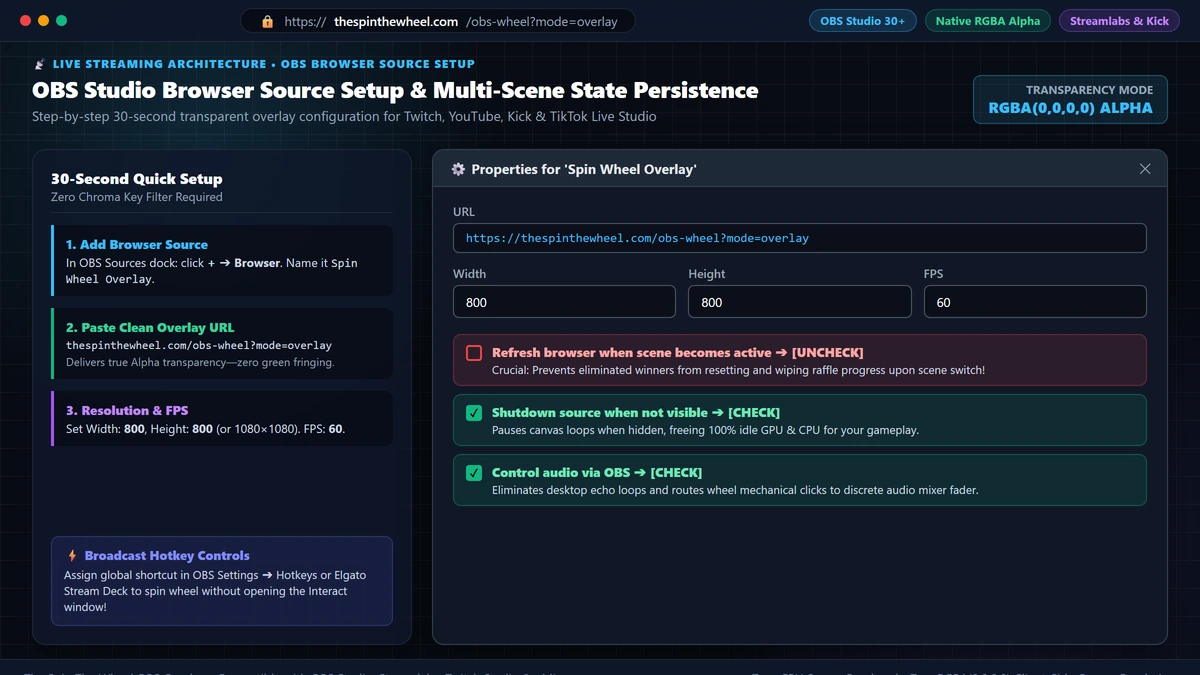
In OBS Studio, Streamlabs Desktop, or TikTok Live Studio, add a new Browser Source. Paste the URL and set dimensions to 800 by 800 at 60 FPS.
Set Scene Persistence & Audio
Check Shutdown source when not visible (0.0% idle CPU). Uncheck Refresh browser when scene becomes active to preserve state. Leave Control audio via OBS unchecked so mechanical ticks route cleanly to Desktop Audio without double-echoing.
Control the wheel mid-stream through the OBS Interact window or mapped Elgato Stream Deck hotkeys. Tap Spacebar to spin or dismiss winner banners, press R to remove a selected winner, and tap C to restore original entries. Because procedural Web Audio ticks play natively through browser output, your stream captures crisp click cues without latency or audio desync.
During high-stakes giveaways, viewer trust matters. The overlay displays an immutable SHA-256 pre-spin commitment hash on stream before every spin. Viewers can independently audit outcome fairness at the Giveaway Audit Verifier or review the underlying cryptographic proof on the Provably Fair Wheel. For custom spin lists, penalties, and subathon rules, explore our setup guide on Twitch Subathon and Stream Wheel Ideas.
Frequently Asked Questions
Streamlabs wheels typically freeze from three causes: dropped WebSockets between inactive dashboard tabs and OBS, CEF Hardware Acceleration locks under high GPU loads, or corrupted browser source page caches.
Use a specialized overlay URL like TheSpinTheWheel (/obs-wheel?mode=overlay) that renders with native RGBA(0,0,0,0) alpha transparency on HTML5 Canvas. Add it as an 800x800 Browser Source in OBS without needing any Chroma Key filters.
Streamlabs binds widgets to individual platform logins (Twitch, YouTube, or Kick), causing session disconnects when multistreaming and providing zero native support for TikTok Live Studio. In contrast, a stateless, zero-login Browser Source URL works across OBS Studio, Streamlabs Desktop, and TikTok Live Studio without platform lock-in.
In OBS Browser Source properties, uncheck "Refresh browser when scene becomes active" so the current wheel state and removed winners are preserved. Check "Shutdown source when not visible" so the CEF browser engine consumes 0.0% CPU when the scene is hidden.