Team Picker Wheel: Free Online Random Team & Group Generator
The Team Picker Wheel splits any list of students, coworkers, or players into 2 to 20 balanced teams in seconds. It handles uneven rosters fairly, lets you balance skills with simple tags, and gives you presentation-ready rosters for smartboards, Slack, or Google Classroom—with zero bias, manual math, or login required.
How Big Should Your Teams Be? The Science of Group Sizing
Before spinning the wheel, most teachers and session hosts pause on the same question: "How many people should actually be in each group?"
Group size directly shapes how much people speak up and get involved. If a group is too small, a single disagreement can stall progress. If it gets too large, people quietly check out. This drop in motivation past 6 members is known as the Ringelmann Effect (Social Loafing).
| Group Size | Psychological Dynamics | Behavioral Risk | Best-Fit Use Case |
|---|---|---|---|
| Pairs / Dyads (2) | 100% active engagement. Nowhere to hide. Fast, direct feedback between partners. | Disagreements can stall work without a third person to break a tie. | Think-Pair-Share, peer code reviews, language practice. |
| Triads (3) | Natural tie-breaker (2-vs-1). Diverse viewpoints without splitting into side chats. | One person can feel left out if the other two form an alliance. | Debate sparring, rapid brainstorming, peer tutoring. |
| Squads of 4–6 (Two-Pizza) | High engagement and diverse viewpoints. Small enough to make fast decisions without coordination drag. | Requires clear role delegation (Captain/Scribe). | Agile retrospectives, hackathons, science lab groups. |
| Large Teams (7–12) | Great for specialized tasks, but communication channels multiply fast ($n(n-1)/2$). | Ringelmann Effect: Motivation drops and quieter members check out while a few people dominate. | Intramural sports (soccer, flag football), pub trivia tables. |
To skip doing the math yourself, the Team Picker Wheel gives you two quick options:
- By Number of Teams (2 to 20): Use this when physical constraints dictate your setup—such as 4 tournament brackets, 5 lab tables, or 6 Zoom breakout rooms.
- By Group Size (Pairs to 12): Use this when you want specific group sizes—such as pairs for partner work or squads of 4 for sprints. The algorithm calculates how many teams to make and spreads remainders evenly.
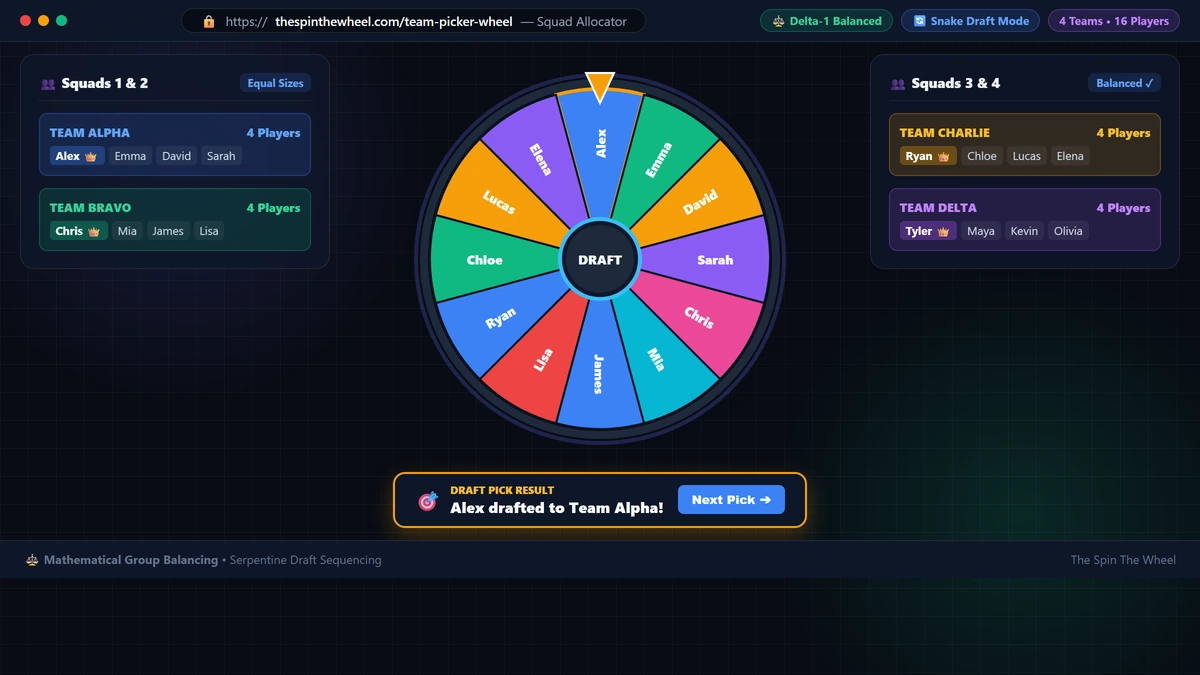
Odd Numbers & Uneven Lists: How Delta-One Math Keeps Teams Fair
Dividing a list by hand gets messy the moment numbers don't split evenly. If you divide 23 students across 4 tables, where do the extra 3 students go? Done manually, one table often ends up with 8 people while another is stuck with 4.
The Team Picker Wheel enforces a strict rule known as the Delta-One Bound: no team will ever have more than a 1-person difference compared to any other team. For N participants divided across K teams (2 ≤ K ≤ 20):
- Base Team Size (S): Calculated as S = ⌊N / K⌋. Every team gets at least S members.
- Leftover Distribution (R): The R = N mod K remaining people are distributed one by one across the first R teams (who get S + 1 members).
- Guaranteed Max Difference: The size difference between any two teams is never greater than 1 (|Size(Ti) − Size(Tj)| ≤ 1).
In a 23-participant, 4-team draw, the tool calculates S = ⌊23/4⌋ = 5 and R = 23 mod 4 = 3. Exactly three squads get 6 members and one squad gets 5. No squad ever receives 7 or 4. Each drawn name enters an eligible squad, and their slice leaves the wheel so everyone remaining retains equal odds on later spins.
The Late Arrival & Drop-Out Rule: Adjusting Without Re-Spinning
Real-world meetings and classrooms rarely stay static. People walk in 5 minutes late, or a remote attendee disconnects. Re-spinning the whole wheel invalidates the teams already formed and disrupts session momentum. Use these simple rules to adjust on the fly:
- Handling Late Arrivals: Add the latecomer directly to one of the squads currently holding base capacity S (the smaller squads with 1 fewer person). If all squads are currently equal (R = 0), place them into any squad. This increases that squad to S + 1 and preserves the Delta-One Bound without touching any other team.
- Handling Drop-Outs & No-Shows: If someone leaves from a larger team (S + 1), click the X on their badge to remove them. That squad drops to base size S with no extra adjustments needed. If they leave from a base-size team (S), remove them and use the 1-Click Move/Swap button on a larger squad to transfer one member over. Both fixes restore balance in seconds without restarting.
For the full mathematical proof, Lemire range reduction formulas, and Chi-Square test data, read our complete fair team allocation algorithm research paper.
Fair Team Allocation Algorithm: Combinatorial Equity & Modern Fisher-Yates
Explore full mathematical proofs on combinatorial equity, Euclidean partitioning bounds, Chi-Square uniformity audits across 1,000,000 assignments, and production algorithms in C#, TypeScript, and Python.
Balancing Skills & Avoiding Conflicts: Tags, Pairs, and Keep-Apart Rules
Purely random draws frequently produce lopsided squads. One table might get three senior developers while another gets none, or two students with a history of classroom conflict land in the same project group.
You can prevent these issues directly within the participant input box:
1. Skill & Role Balancing: Spreading Leaders and Experience with [Tags]
Append bracketed tags to names—like Sarah [Lead], Alex [Dev], Emma [QA], or Marcus [Senior]—to distribute key roles evenly:
- Group by Tag: The tool isolates each bracketed tag and shuffles that group with cryptographic randomness.
- Spread Evenly: Each squad receives one person with that tag before any squad gets a second. This spreads experience evenly across tables.
- Fill Open Spots: Untagged participants are then distributed to fill the remaining open slots.
2. Keeping Pairs Together: The Ampersand Rule (Alice & Bob)
To lock partners together (such as mentor-mentee pairs, lab partners, or carpool buddies), put them on a single line joined with an ampersand: Alice & Bob [Pair]. The wheel treats them as a single entry and places them into the same squad.
3. Keeping Conflicted Members Apart: Tag & Swap Solutions
When two participants should not share a group, choose between two methods:
- Opposing Tags: In a 2-team split, assign opposing tags (such as
Student A [Alpha]andStudent B [Beta]). The algorithm places them into separate squads automatically. - Post-Draw Roster Swap: For 3 or more squads, let the draw proceed. If both individuals land in the same squad, click the Move / Swap icon on their card to trade one with an equivalent member from another squad in two clicks.
4. Automated List Cleanup & Deduplication
Pasting names from Excel, Google Sheets, or Google Classroom often brings along line numbers (1. Sarah, 2) David) or stray commas. The input box automatically strips leading numbers, cleans up whitespace, and removes duplicate names without manual editing.
5. Large Rosters (100+ Names) & Multi-Class Bookmarking for Teachers
The HTML5 Canvas dynamically scales font size and slice widths to remain legible for up to 60–80 participants. For lecture halls, all-hands retreats, or esports tournaments with 100+ participants, click ⚡ Quick Instant Auto-Group. It processes in-memory via Fisher-Yates CSPRNG in under 0.2 seconds, skipping canvas rendering delays and building squads instantly.
Bookmarkable Class Rosters: If you teach multiple classes or lead recurring sprints (such as Period 1 Biology vs. Period 4 Chemistry), enter your student names once, click Share Setup, and bookmark the generated stateless URL in your browser. Each class opens in 1 click with full rosters pre-populated—zero server accounts or repeated copy-pasting required.
Draft Pacing & Allocation Modes: Suspense vs. Speed
Audiences love the suspense of a spinning wheel, but clicking "Spin" 35 times in a row eats up 10 to 15 minutes of class or meeting time. To keep things fun without falling behind schedule, the tool gives you three distribution methods and flexible draft speeds:
Round-Robin vs. 🐍 Snake Draft vs. Random Allocation
- 1. Sequential Round-Robin (1 → K Cycle): Names are assigned in strict numerical sequence: Pick 1 to Team 1, Pick 2 to Team 2, up through Team $K$, then cycling back. The live On The Clock banner highlights which team is drafting next, mirroring professional sports draft boards.
- 2. 🐍 Snake Draft (1 → K then K → 1): In tournament seeding or skill-tiered draws, round-robin gives Team 1 an unfair advantage by always picking first. Snake draft reverses order every round: Round 1 drafts $1 \to K$, and Round 2 drafts $K \to 1$. Team $K$ gets back-to-back picks at the turn, leveling the playing field for every squad.
- 3. Randomized Balanced Allocation: Each drawn participant is placed into an open squad selected at random from those with available capacity. Because participants cannot predict which team is up next, suspense remains high throughout the entire draw.
Pacing Strategies for Session Hosts
- The 2-Stage Hybrid Model (Recommended): Enable Assign Team Captain (👑) and spin the wheel manually for the first $K$ spins to crown squad captains. Once captains are established, click Auto-Spin All or ⚡ Quick Instant Auto-Group to complete remaining rosters in seconds. You get the full game-show atmosphere in under 60 seconds without losing momentum.
- Hands-Free Auto-Spin: Click Auto-Spin All to run an automated 1.5-second rhythm sequence with audio ticks and slice removals. You can pause or stop the sequence at any point.
- ⚡ Instant 1-Click Auto-Group: For time-pressed Agile standups, hackathons, or Zoom breakout setups, click ⚡ Quick Instant Auto-Group. It executes an in-memory Fisher-Yates CSPRNG shuffle and builds fully balanced rosters in under 1 second.
Handling Team Disputes: The 60-Second Trade Window & 1-Screen Advantage
Even with a mathematically fair draw, real-world friction happens. Teammates may need adjustments due to project dependencies, schedule conflicts, or personality clashes.
Re-spinning the entire wheel makes people feel the draw was rigged. Instead, you can handle adjustments openly:
- The 60-Second Trade Window: Right after teams appear, announce a 60-second trade window. If two participants agree to swap spots, make the change publicly using the Move / Swap icon on their team cards.
- Captain Protection: When Assign Team Captain (👑) is enabled, captains stay locked to their assigned squads so team leadership remains steady during member trades.
- Live Export Sync: Every swap instantly updates the roster board, downloadable PNG cards, CSV files, and clipboard text.
Why a Single Projector Screen Beats Smartphone "Self-Join" Links
Some platforms push QR-code "Self-Join" modes where everyone opens a link on their phone. In real classrooms and meetings, this wastes time and creates headaches:
- No Phone Distractions: Many schools ban smartphones in class, and not every student has a working phone with cellular data. Running the draw from a single smartboard or projector ensures everyone participates without pulling out phones.
- Zero Dead Time: Waiting for 30 people to scan QR codes, troubleshoot WiFi, and connect burns 5 to 10 minutes of valuable class or meeting time.
- Privacy & Data Sovereignty: "Self-join" platforms require live server connections, often logging student IP addresses, device IDs, or requiring accounts. TheSpinTheWheel runs 100% in your browser, so names never leave your computer. This ensures complete data sovereignty for corporate personnel rosters, sports leagues, and student groups without third-party tracking.
Quick Setup Cheatsheet: Recommended Setups by Scenario
Select the ideal configuration for your session based on group size, agenda constraints, and group dynamics:
| Scenario | Dimension Mode | Target Size / Teams | Distribution Mode | Recommended Features |
|---|---|---|---|---|
| K-12 & University Classrooms | By Group Size | 3–4 per Group | Round-Robin or Random | 2-Stage Hybrid Draft, Anti-Conflict Tags, Fullscreen Projector — explore our classroom grouping playbook |
| Agile / Scrum Remote Standups | By # of Teams | Match Breakout Rooms (4–6 Teams) | Instant 1-Click Auto-Group | Role Tags [Dev] [QA], Copy Markdown for Slack/Teams — see the remote team playbook |
| Sports Leagues & Esports Tournaments | By # of Teams | 2–8 Teams (Bracket Matching) | 🐍 Snake Draft | Assign Captain (👑), Seed Tags [Tier 1] [Tier 2], PNG Export — check the sports draft protocol |
| Corporate Icebreakers & Retreats | By Group Size | 4–5 per Group (Cross-Functional) | Random Balanced | Team Name Themes (Mascots/Agile), 60s Trade Window |
| Pub Quizzes & Trivia Game Nights | By # of Teams | Match Table Count (4–10 Teams) | Sequential Round-Robin | Sound Effects On, Team Colors Pack, Instant PNG Share |
Feature Comparison: TheSpinTheWheel vs. Picker Wheel, Wheel of Names & AhaSlides
When searching for a picker wheel team picker alternative or comparing team generators, execution latency, ad clutter, and presentation flow are the decisive factors. While Picker Wheel is widely recognized, its team generator mode requires manual individual clicks for each draw, caps free accounts at 15 saved lists, and loads programmatic video ads that interrupt presentations.
In contrast, The Spin The Wheel delivers a purpose-built, high-performance group sorting workspace: sub-second 0.76s LCP loading speed, continuous hands-free auto-spin (cycling 30+ participant draws in seconds), unlimited free list saves via client-side hash encoding, and strict COPPA and FERPA student privacy compliance with zero database logging. Below is our objective, 15-point technical comparison across leading group generators:
| Feature & Metric | TheSpinTheWheel | Picker Wheel | Wheel of Names | RandomLists | AhaSlides |
|---|---|---|---|---|---|
| Entropy Generator | Hardware CSPRNG | Standard Math.random | Standard Crypto | Math.random | Server PRNG |
| Delta-One Balanced Capacities | Yes (Strict ≤ 1) | Yes | No (Manual Tally) | Yes | Basic Split |
| Dual Dimension (Teams vs Size) | Yes (2-20 Teams / 2-12 Size) | Yes | No | Yes (Text only) | No |
| Tag-Based Skill Balancing | Yes (Bracket [Tag] Cohorts) | Basic Gender Tag | No | No | No |
| 🐍 Snake Draft Mode | Yes (1→K then K→1) | No | No | No | No |
| The 2-Stage Hybrid Draft Model | Yes (Captain Spin + Instant Rest) | No | No | No | No |
| Hands-Free Auto-Spin Sequence | Yes (1.5s Rhythm) | No (Manual 30x) | No | No | No |
| Instant 1-Click Auto-Group | Yes (< 1 Second) | No | No | Yes (Static Text) | No |
| Live Draft Roster Board | Yes (Interactive Bento Cards) | Basic List | No Roster | Plain Text Boxes | Slide Presentation |
| Team Captain Designation | Yes (👑 Badge Auto) | No | No | No | No |
| Post-Draw Move & Swap | Yes (1-Click Swap Dialog) | No | No | No | No |
| Export Formats | PNG Image + CSV + Markdown | CSV / Simple Image | Text File | Copy Text Only | XLSX (Paid Tier) |
| Account & Paywall Limits | 100% Free / No Limits | Paywall (>15 wheels) | Free with Google ID | Free | Free up to 50 (Paywall >50) |
| Ad Saturation & Intrusiveness | Zero Popups / Zero Video Ads | Heavy Video Ads | Moderate Banner Ads | Heavy Programmatic Ads | Clean (SaaS Model) |
| Privacy Compliance | 100% Client-Side (Zero Server DB) | Third-party ad tracking | Google OAuth tracking | Web analytics tracking | User account profiling |
Adjacent Decision Tools: When to Use What
Not every random draw needs teams. Here is how to pick the right tool for your situation:
- Splitting people into balanced groups? Use the Team Picker Wheel (this tool) for fair team sizes, skill tags, and roster exports.
- Calling on a single person or picking one winner? Use the Classroom Name Picker for turn-taking without building teams.
- Resolving a quick binary decision or tie-breaker? Use the Yes or No Wheel with Best-of-3 mode.
- Picking random numbers or lottery digits? Use the Random Number Wheel for ranges from 1 to 100+.
- Looking for broader wheel alternatives to Picker Wheel? Read our comprehensive guide to the 10 Best Wheel of Names & Spinner Alternatives.
Frequently Asked Questions About the Team Picker Wheel
How does the Team Picker Wheel mathematically prevent unequal team sizes? +
The tool uses a deterministic Delta-One balancing rule: no team will ever have more than a one-person difference compared to any other team. Dividing 23 people into 4 teams will always produce three teams of 6 and one team of 5—never an unfair team of 7 and an understaffed team of 4.
What is the optimal team size for classroom group work vs. Agile meetings? +
Pairs (2 people) work best for peer reviews and pair programming where you want 100% accountability. Triads (3 people) are great for debates and fast decisions because they prevent 50/50 ties. For Agile workshops or group projects, 4 to 6 people (Jeff Bezos' Two-Pizza Rule) is the sweet spot. Once a group grows past 6, individual effort drops sharply due to the Ringelmann Effect (social loafing).
Can I split participants by group size or create pairs (e.g. groups of 2, 3, or 4)? +
Yes, switch to 'By Group Size' mode at the top of the controls. You can specify exact target sizes (such as pairs, triads, or squads of 4 to 6). The algorithm automatically calculates the necessary number of teams and balances remainder participants evenly so no group is left understaffed or isolated.
How does Tag-based Skill, Role, and Demographic balancing work? +
Add brackets to names in your list, like 'Sarah [Lead]' or 'Alex [Senior]'. The tool groups participants with the same tag and spreads them evenly across all teams before filling remaining spots. This guarantees every squad gets an equal share of leaders, mentors, or specific skills.
What should I do if two participants have a personality conflict and cannot be on the same team? +
The tool includes a 1-Click Move/Swap dialog on each team card. Under our 60-Second Trade Window rule, you can transparently swap two members between squads right on the screen. This resolves clashes or scheduling conflicts without having to re-spin the whole wheel or look like you are playing favorites.
What is the difference between Round-Robin, Snake Draft, and Randomized Balanced allocation? +
Round-Robin fills squads in forward sequence (1 to K continuously). Snake Draft reverses direction every round (1 to K, then K to 1), neutralizing the first-pick advantage for tournaments and competitive drafts. Randomized Balanced assigns each drawn person to a randomly selected open squad, maximizing room suspense.
What is the 2-Stage Hybrid Draft model? +
The 2-Stage Hybrid model gives you suspense without wasting time. First, spin the wheel to pick team captains or table anchors. Then, click 'Instant Auto-Group' or 'Auto-Spin All' to fill the remaining spots in seconds. You get all the excitement in under a minute.
How do I handle late arrivals or people leaving without re-spinning the whole wheel? +
For late arrivals, add them directly into one of the smaller squads (holding base size S), which preserves balance without touching other squads. For drop-outs, delete their badge from the squad card. If that team becomes 2 members smaller than another, use the 1-Click Move/Swap button on a larger squad card to transfer one person over.
How do I handle large rosters of 100+ participants or save lists for different classes? +
For rosters of 100+ participants, use 'Instant 1-Click Auto-Group' to distribute everyone in under 0.2 seconds via Fisher-Yates CSPRNG without rendering crowded wheel slices. To save lists for different classes or recurring sprints without re-typing, click 'Share Setup' and bookmark that compact stateless URL—it reloads your exact names and team settings in one click.
Can I designate a Team Captain or Leader automatically? +
Yes! Turning on 'Assign Team Captain (👑)' gives the first person picked for each team a crown icon across the live board, exported PNG cards, and CSV sheets.
Can I export the generated teams as an image, spreadsheet, or chat format? +
Yes. Click 'Export PNG Image' in the roster section header to generate a crisp 1200px graphic card with team badges, member rosters, captain crowns, and date stamps. Click 'Copy All Teams' to copy clean text directly into Slack, Discord, Microsoft Teams, or Google Classroom. You can also click 'Export CSV' for spreadsheets.
Is my participant or roster data stored on remote servers? +
No. The Team Picker Wheel operates 100% on the client side in your web browser. Participant rosters stay strictly inside your local device memory and are never transmitted to any external server or database. This ensures complete data privacy for corporate personnel rosters, sports leagues, and educational groups.