🎥 Broadcaster Studio Engine

OBS Wheel: Transparent Stream Overlay Spinner for OBS Studio

Native Alpha transparency for OBS Studio & Streamlabs. Zero Chroma key required, sub-second CEF rendering, and broadcast hotkey controls.

SHA-256 Pre-Spin Hash:
Generating cryptographic seed...
Audit Seed
Live Stream Simulator:
Test Overlay
Space Spin / Stop R Remove Winner C Reset List M Mute Sound
🚀 1-Click OBS Browser Source
Direct Transparent URL
Recommended OBS Size: 800 × 800 FPS: 60 Custom CSS: Default (Keep as-is)

Streamer Studio Deck

8 items
Explore Tool Ecosystem
Specialized Decision Makers & Game Pickers
🚀 Quick Setup Guide

3-Step OBS Studio & Streamlabs Setup Guide

Embed your clean transparent wheel overlay into your broadcast in under 60 seconds.

1️⃣

1. Custom Overlay Link Compilation

Set up your prizes, stream colors, and winner countdown in the Studio Deck, then click "Copy OBS Link". All choices compile into your custom URL. Paste large rosters from spreadsheets or chat logs freely; the wheel adjusts font sizes automatically so every slice stays sharp.

2️⃣

2. OBS Browser Source Setup (800 × 800)

In OBS Studio or Streamlabs, go to Sources → + → Browser. Name it "Spin Wheel", paste your URL, and set dimensions to 800 × 800 at 60 FPS. Keep the default Custom CSS as-is. You can drag and resize the source anywhere on your stream canvas.

3️⃣

3. Live Hotkey Control & Stream Broadcast

Right-click your browser source → click Interact to open your private control window. Press Spacebar to spin or R to remove a winner. Viewers see only the clean, spinning wheel over your broadcast.

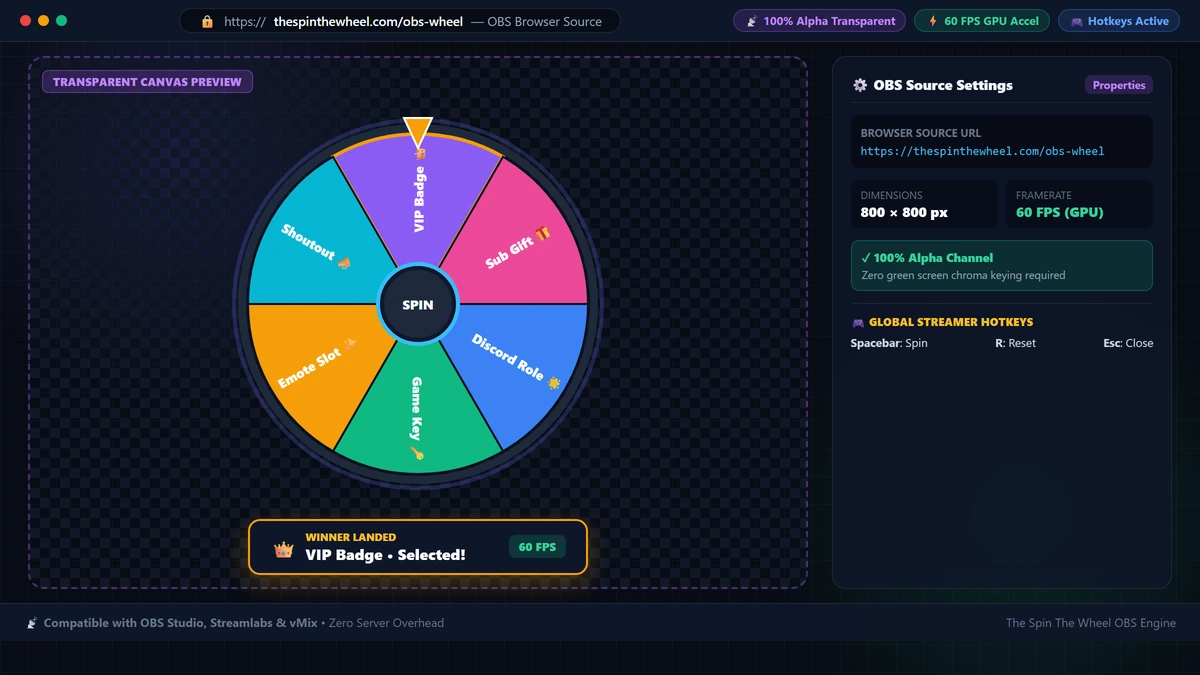
OBS Studio Browser Source properties configuration showing transparent overlay settings, 800x800 dimensions, and hardware acceleration
Optimal OBS Studio Browser Source properties configuration: 800 × 800 dimensions, 60 FPS, and native Alpha transparency.
OBS Browser Source Setting Recommended Value Technical Impact & Benefit
URL https://thespinthewheel.com/obs-wheel?mode=overlay Enforces true RGBA(0,0,0,0) Alpha channel transparency; strips UI chrome.
Width & Height 800 × 800 px Provides 1:1 circular aspect ratio with ample headroom for winner banner glow.
FPS 60 Matches standard stream broadcast framerate for silky-smooth rotation.
Custom CSS Default (Keep as-is) OBS default CSS already sets body transparent and hides scrollbars; zero custom code required.
Shutdown source when not visible ✅ Enabled (Checked) Stops CEF animation loops when switching scenes, saving 100% idle GPU/CPU load.
Refresh browser when scene becomes active ❌ Disabled (Unchecked) CRITICAL: Keep unchecked so eliminated giveaway winners remain removed across scenes.
Control audio via OBS ✅ Optional (Checked) Creates dedicated volume slider in OBS Audio Mixer for independent sound control.
Broadcaster Pro-Tip: Eliminating Stream Audio Echo & Double Sound

If stream viewers hear duplicate audio during spins, your software is sending browser sound to Desktop Audio while also capturing Desktop Audio. To fix this: check "Control audio via OBS" in Browser Source properties. Next, open Edit → Advanced Audio Properties and locate "Spin Wheel". Set Audio Monitoring to Monitor Only (mute output) if your desktop track already captures audio, or Monitor and Output when recording discrete audio tracks.

Warning: Never Enable "Refresh Browser When Scene Becomes Active" for Raffles

For giveaways and brackets, never enable "Refresh browser when scene becomes active". That option forces OBS to reload the web page whenever you change scenes (like switching from Just Chatting to Gameplay). Reloading resets the original list and brings back eliminated winners. Always keep this box Unchecked so your participant list stays persistent.

Why Generic Wheels Fail on Stream (And How We Fix It)

Streamers who try standard web wheels in OBS Studio or Streamlabs usually run into three annoying issues. Here is how our purpose-built overlay solves every one of them:

💎

The Black Box Issue: Native Alpha vs Chroma Key Bleed

Standard websites render solid white or dark rectangular backgrounds that cover your webcam and gameplay. Using an OBS Chroma Key filter to key out a green background often punches see-through holes in green or cyan wheel slices. Our /obs-wheel?mode=overlay runs with native Alpha transparency (RGBA 0,0,0,0). Every slice has crisp, anti-aliased vector edges with zero green fringing.

⚡

Zero Game Lag: Protecting Stream FPS in High-Load Gaming

Every OBS browser source runs a separate Chromium process. Heavy web wheels packed with ad scripts and tracking pixels can spike CPU usage by 10%–20%, causing dropped frames in fast-paced games like Warzone, Apex Legends, or Valorant. Our overlay runs on pure Vanilla JavaScript under 15KB (gzipped, zero dependencies). It sits at 0.0% idle CPU and renders smoothly on hardware-accelerated 60 FPS Canvas.

🚀

Hands-Free Broadcasting: Auto-Dismissing Winner Banners

Standard wheels pop up alert boxes that stay stuck on screen until you open the OBS Interact window and manually click "Close". TheSpinTheWheel uses a broadcast HUD with an auto-dismiss timer (3s, 5s, or 10s). It highlights the winner with a celebratory glow, then quietly clears itself so your stream layout stays clean.

💡 Comparing Streamer Overlays? If you are evaluating integrated alert suites vs standalone tools, read our comprehensive benchmark of Streamlabs Spin Wheel alternatives to explore rendering performance, cloud sync reliability, and multi-streaming setups on Kick and TikTok Live Studio.

Streamer Controls, Chat Automation & Fair Play

Here is how to run giveaways, sub goals, viewer raffles, and chat challenges smoothly on air without breaking stream momentum:

Elgato Stream Deck & Quick Hotkey Binds (Spacebar, R, C, M)

Alt-tabbing out of a game to click a browser window breaks stream immersion. TheSpinTheWheel provides native broadcast keybinds directly from the OBS "Interact" window or mapped to your macro deck:

  • Spacebar — Spin / Stop: Starts the spin animation or immediately dismisses the active winner banner.
  • R — Remove Winner: Takes the winning slice off the wheel so the same viewer cannot win twice in multi-draw giveaways. (For elimination tournaments and battle royales, check out our full Elimination Wheel).
  • C — Reset List: Restores all original entries when starting a new round or tournament.
  • M — Mute Sound: Silences mechanical ticking sounds during clutch gameplay or quiet talking segments.

Stream Deck Tip: You can assign a Stream Deck key to execute the native OBS Studio action "Source: Toggle Visibility" for your "Spin Wheel" source. When paired with OBS's "Shutdown source when not visible" setting, tapping the key brings the wheel onto your stream instantly, and hiding it returns your scene to 100% free system resources.

Twitch Chat Commands & Channel Points: Zero-Login vs Chatbot Automation

Streamers often ask if viewers can spin the wheel directly using Twitch chat commands (like !spin) or Channel Points. Live streaming setups usually take one of two approaches:

  • 1. Lightweight Zero-Login Overlay (TheSpinTheWheel): No account signup, no Twitch OAuth scopes, and no server logging. Your channel stays secure against leaked bot tokens. You keep total broadcast control: when a viewer redeems Channel Points or reaches a sub goal, you simply hit your Stream Deck key or Spacebar to spin.
  • 2. Full Chatbot WebSocket Integration: Tools like Streamer.bot can listen directly to chat commands, but they require continuous OAuth tokens, local WebSocket servers, and ongoing setup maintenance. For quick sub goals, community giveaways, and game challenges, a direct hotkey overlay is much faster, cleaner, and crash-free.

Provably Fair Giveaways: SHA-256 Pre-Spin Verification

Running high-stakes giveaways on Twitch, YouTube, or Kick—like gaming peripherals, Steam gift cards, or gifted subs—often invites chat skepticism. If a moderator, regular subscriber, or friend wins, viewers might suspect a quiet re-spin or weighted odds.

TheSpinTheWheel solves this using SHA-256 Pre-Spin Commitment Seeds. Before the wheel begins turning, the browser generates a cryptographic hash from hardware entropy, exact timestamp, and the active roster:

CommitmentHash = SHA-256(Entropy + Timestamp + Items)

This hash is visible right on screen before the wheel moves. Anyone in chat can test the draw on TheSpinTheWheel Audit Verifier to confirm the result was locked before spinning. For multi-tier community raffles, try our dedicated Provably Fair Giveaway Wheel. You can also read our deep-dive on CSPRNG vs Math.random() randomness.

Streaming Wheel Solutions Comparison

Evaluating your wheel options for livestream broadcasts:

Evaluation Criteria Window Capture + Chroma Key TheSpinTheWheel (/obs-wheel) Chatbot Widgets (OAuth Apps)
Transparency Quality ❌ Green fringing & hole artifacts ✅ 100% Native Alpha (Zero artifacts) ✅ Transparent Overlay
Setup Friction High (Window crop + filter tweaks) ✅ Instant (1-Click URL copy) ❌ Very High (OAuth + API setup)
Account / Login Required No ✅ Zero Login (No tracking) ❌ Mandatory OAuth login
CEF Memory & CPU Load Moderate to Heavy (Full browser DOM) ✅ Under 15KB (gzipped) / Zero-dependency Heavy (Complex WebSocket listeners)
Auto-Dismiss Winner Banner ❌ No (Stuck on stream) ✅ Yes (3s / 5s / 10s configurable) Configurable in dashboard
Cryptographic Proof ❌ None (Chat may suspect rigging) ✅ SHA-256 Pre-Spin Commit Seed ❌ None

Frequently Asked Questions for Streamers

Troubleshooting, audio routing, and performance optimization for broadcasting software.

Why does my wheel have a black background in OBS Studio and how do I fix it?

Web pages normally render on solid white or dark backgrounds. When loaded into an OBS Browser Source without native transparency, the browser container blocks your gameplay. TheSpinTheWheel's /obs-wheel?mode=overlay route enables true Alpha transparency (RGBA 0,0,0,0) right out of the box. You get a clean, floating wheel with zero black background, without touching chroma key filters or custom CSS.

How do I spin the wheel live on stream without showing browser tabs to viewers?

In OBS Studio or Streamlabs, right-click your "Spin Wheel" Browser Source in the Sources panel and select Interact. A floating interaction window will open that is only visible to you. Click the center SPIN button or press Spacebar inside that window. Your viewers will see only the clean transparent wheel spinning in real-time over your stream layout.

Can I remove the winner's name automatically so they cannot win multiple prizes?

Yes. In the Studio Deck before copying your OBS link, toggle "Eliminate Winner (Raffle Mode)" so the landed slice disappears after 1.5 seconds. If you prefer manual control live on air, press the R key inside the OBS Interact window to remove the winning slice on demand.

How do I fix audio echo or double sound when spinning the wheel in OBS?

Audio echo happens when OBS outputs browser source sound to your Desktop Audio while simultaneously recording Desktop Audio on stream. To fix this: open Browser Source properties and check "Control audio via OBS". Next, in the OBS Audio Mixer, click the gear icon → Advanced Audio Properties. Find "Spin Wheel" and change Audio Monitoring to Monitor Only (mute output) if your desktop audio already picks up the sound, or Monitor and Output if you record discrete audio tracks.

Which OBS Browser Source checkboxes should I enable or disable?

Check: "Shutdown source when not visible." This tells OBS to pause browser animations when you switch away from the scene, freeing up CPU and GPU resources.
Uncheck: "Refresh browser when scene becomes active." Keeping this disabled ensures that eliminated giveaway winners and custom lists stay intact when you switch between scenes.

Does this OBS wheel cause CPU spikes or dropped stream frames in games?

No. The overlay runs on zero-dependency Vanilla JavaScript under 15KB (gzipped) with no external trackers or background ad networks. While idle, OBS browser CPU usage stays at 0.0%. When spinning, it renders on hardware-accelerated Canvas 2D at 60 FPS, so your game framerate stays unaffected even in intense esports titles.

How do I map the wheel spin action to an Elgato Stream Deck?

You can assign a Stream Deck button to send the Spacebar hotkey to your focused OBS Interact window. Alternatively, using the official Elgato OBS Studio plugin, assign a key to toggle the Browser Source visibility. Tapping the key brings the wheel onto your stream ready to spin, and tapping it again hides it with zero background resource usage.

Can viewers spin the wheel directly via Twitch chat commands like !spin or Channel Points?

The overlay is built as a zero-login, stateless tool to protect your streamer account from permission leaks and bot vulnerabilities. Instead of requiring complex Twitch OAuth bots, streamers trigger spins smoothly by pressing a Stream Deck button or Spacebar whenever a Channel Point reward or chat milestone is redeemed.